Calendar and Events
Manage events, recurrence, iCal subscriptions, holiday calendars, and conversational calendar actions on desktop and mobile.
Nexts Calendar brings personal events, iCal subscriptions, and scheduled tasks into one time-based view. Calendar data stays on your Nexts device; the account service does not store event titles, descriptions, locations, or subscribed calendar content.
Events and scheduled tasks are different
An event reserves or records time for a meeting, appointment, trip, birthday, or other commitment. It does not run an AI action. A scheduled task runs a prompt or workflow at a specified time. Use an event when you only need time on the calendar, and a task when Nexts must perform work later.
Open Calendar
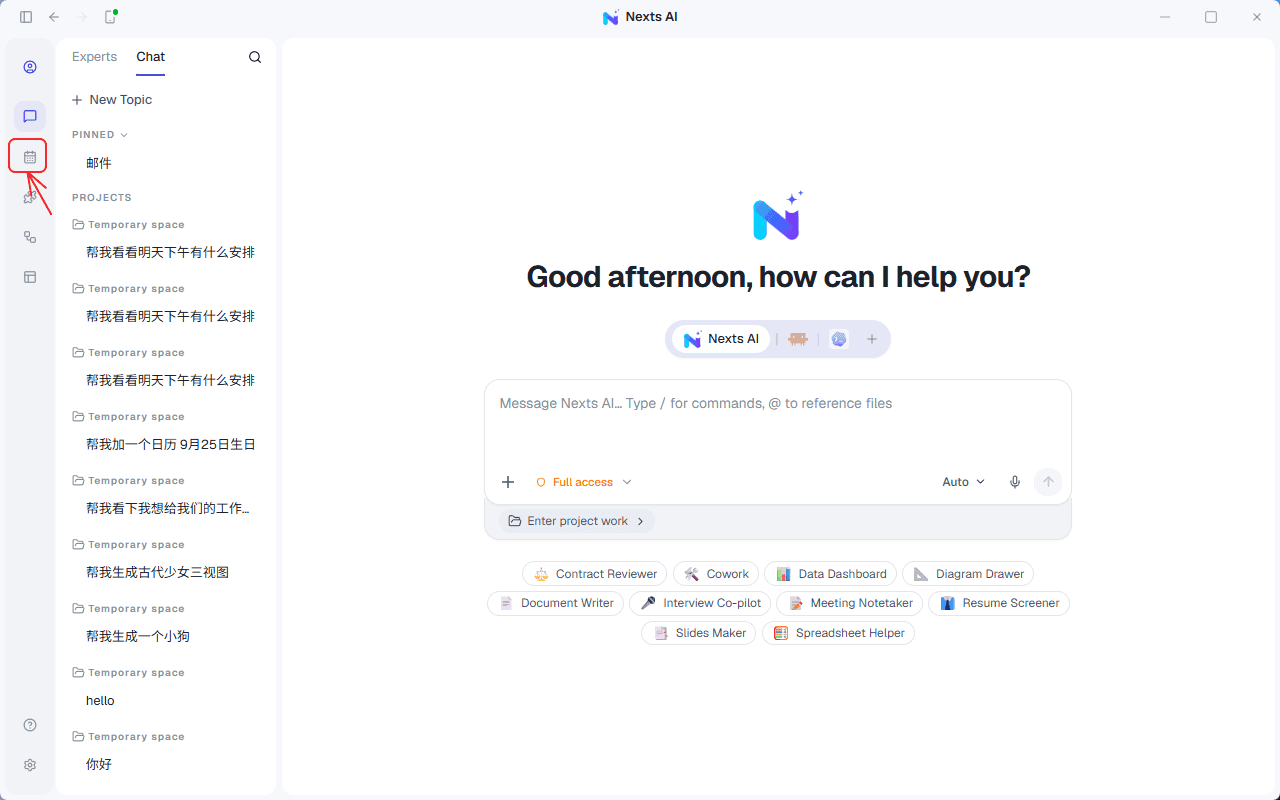
On desktop, select Calendar in the activity bar. The page includes:
- Month, week, day, and year views.
- Today, previous-period, and next-period navigation.
- Event search.
- My Calendar, scheduled task, and iCal subscription sources.
- Creation, editing, and deletion of local events.
On mobile, connect to your desktop Nexts, open the side menu, and select Calendar. The mobile view includes a month grid, daily agenda, source visibility controls, iCal subscriptions, and scheduled tasks. It reads calendar data from the connected Nexts device, so the computer must remain online and Remote Access must be available. See Mobile and remote access for setup.
Create an event
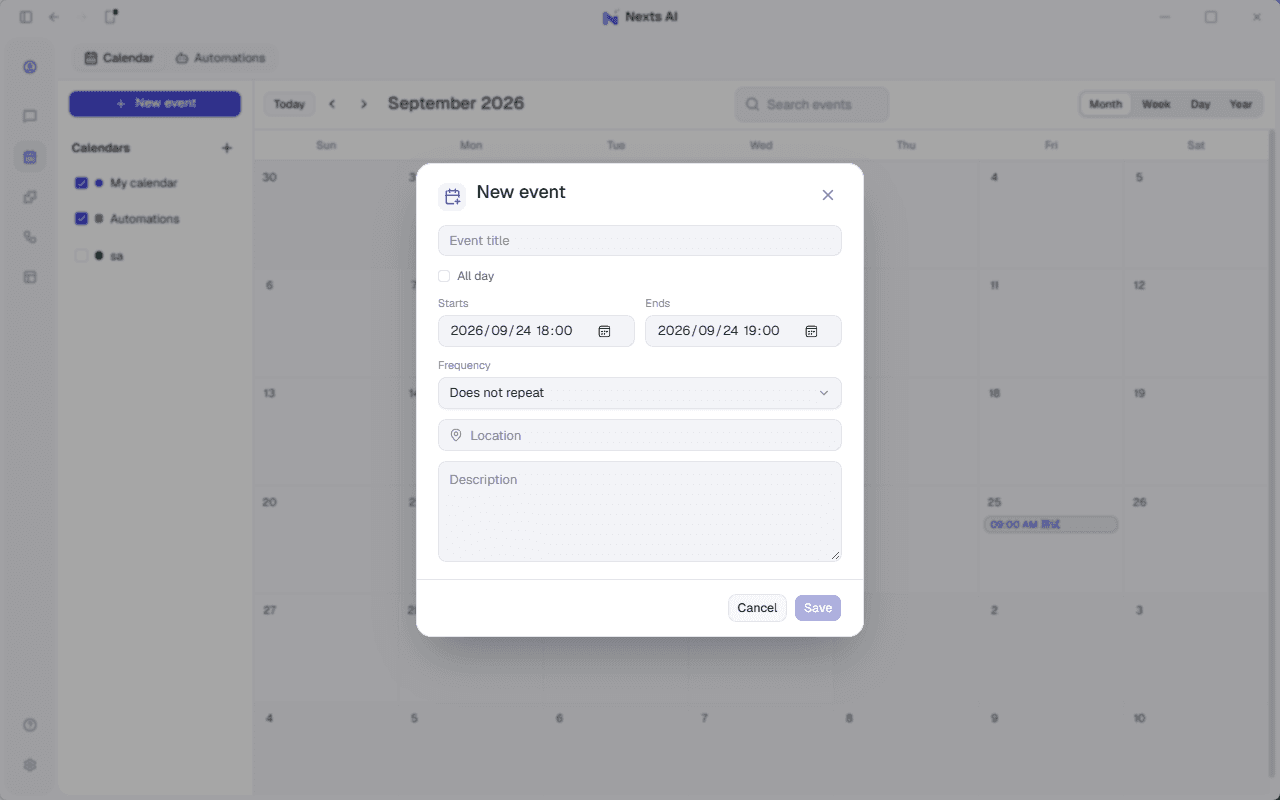
- Select New event, or select a date in the calendar.
- Enter a title.
- Set the start and end time, or enable All day.
- Optionally add a location and description.
- Choose a frequency if the event repeats.
- Save the event.
The end must be later than the start. All-day events use calendar dates. For a multi-day all-day event, set the end to the day after the final displayed day.
Recurrence
Events support:
- No recurrence.
- Daily.
- Weekly on the same weekday.
- Monthly on the nth weekday.
- Monthly on the last matching weekday.
- Annually on the same date.
- Every weekday, Monday through Friday.
- A custom interval, weekday selection, and ending condition.
A custom recurrence can continue indefinitely, end on a date, or stop after a specified number of occurrences.
Calendar sources
The Calendars section separates content by source:
- My Calendar: editable events created in Nexts.
- Automations: enabled scheduled tasks that have a next run time.
- iCal subscriptions: read-only events from external
.ics, HTTPS, orwebcaladdresses.
Clearing a source checkbox only hides that source. It does not delete events or remove the subscription. Select it again to restore the events.
The three-dot menu beside an iCal source lets you:
- Refresh it immediately.
- Change its color.
- Remove the subscription and its cached events from Nexts.
Removing a subscription does not modify the source calendar.
Subscribe to an iCal calendar
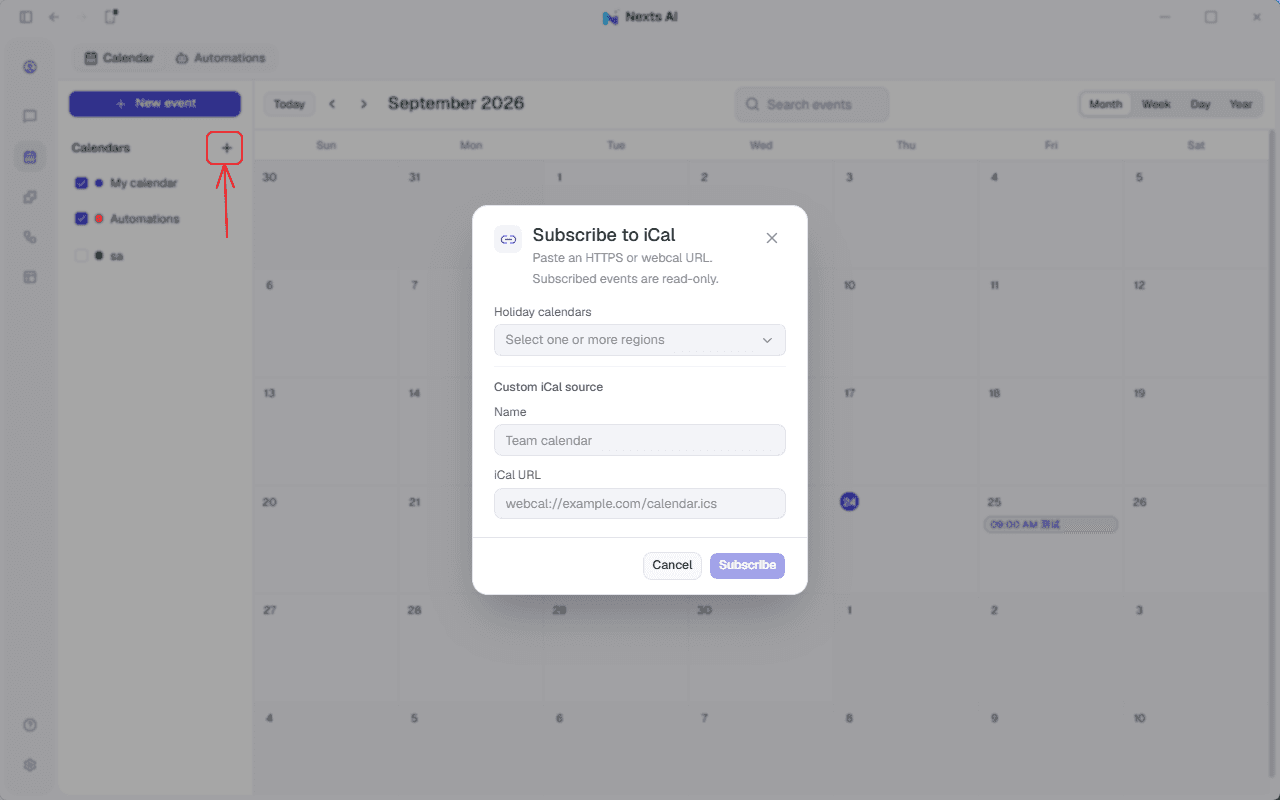
- Select the add button beside Calendars.
- Choose one or more holiday regions, or enter a custom name and iCal URL.
- Select Subscribe.
Built-in holiday presets include China, Italy, and the United States. Custom sources support https:// and webcal:// links.
When you enter Calendar, Nexts attempts to refresh enabled subscriptions. To check immediately, open the source's three-dot menu and select Refresh. If the source server is temporarily unavailable, Nexts retains events from the last successful synchronization.
iCal subscriptions are currently one-way and read-only. You cannot edit a subscribed event in Nexts, and local changes are not written back to the external server. CalDAV two-way synchronization is not yet supported.
Get an iCal URL from Google Calendar
Google Calendar provides its iCal subscription URL only from the desktop website, not from the Google Calendar mobile app:
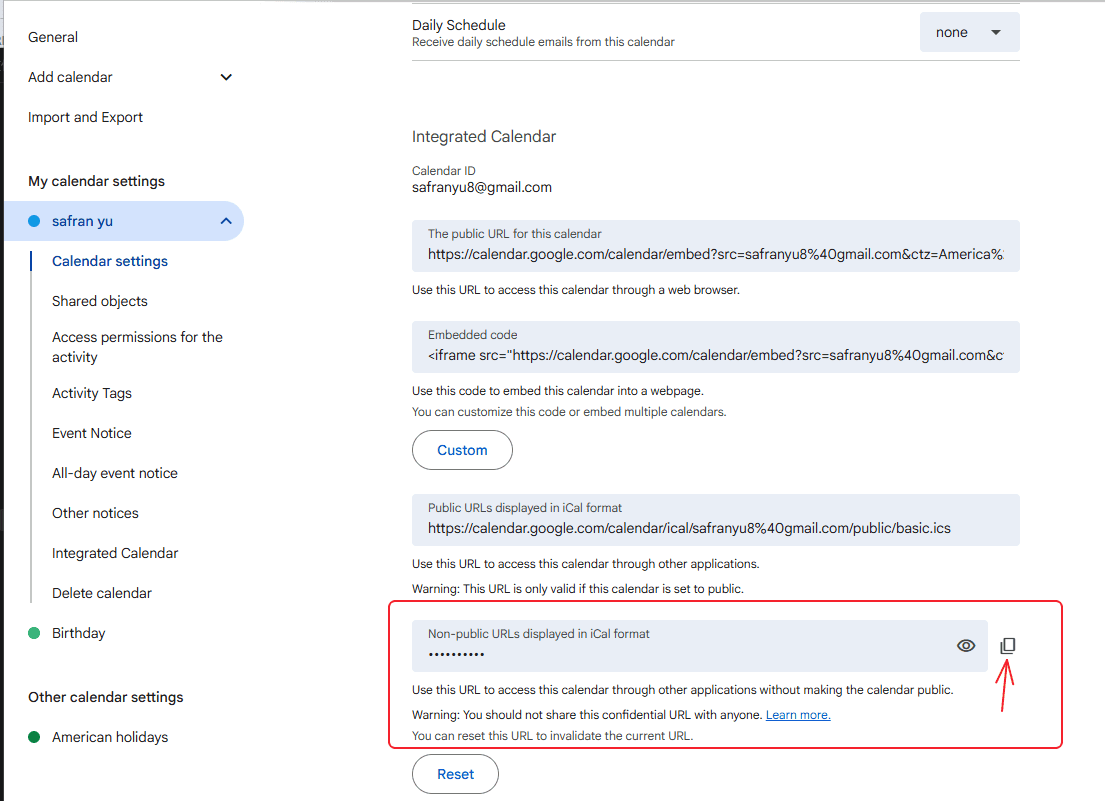
- Open Google Calendar in a desktop browser.
- Select the gear icon in the upper-right corner, then select Settings.
- Under Settings for my calendars, select the calendar you want to show in Nexts.
- Scroll to Integrate calendar.
- Under Secret address in iCal format, copy the link.
- Return to Nexts Calendar, select Add, then enter a name and paste the link under the custom iCal source.
- Select Subscribe. After synchronization, the Google calendar appears as a separate source.
Keep the secret address private
The Secret address in iCal format acts as a read-only access credential for the calendar. Do not send it to other people or place it in public documents, screenshots, or source repositories. If it is exposed, return to Google Calendar's Integrate calendar section and reset the secret address to invalidate the old link.
For a calendar that is already public, you can instead copy the Public address in iCal format. A public iCal address only works when the calendar is public. For a personal private calendar, use the secret address; you do not need to make the entire calendar public just to subscribe to it in Nexts.
If the Secret address option is missing, an administrator for your work, school, or other Google Workspace organization may have restricted calendar export or sharing. Contact the administrator for help. See Google Calendar Help: Sync your calendar with computer programs for Google's current instructions.
Colors and visibility
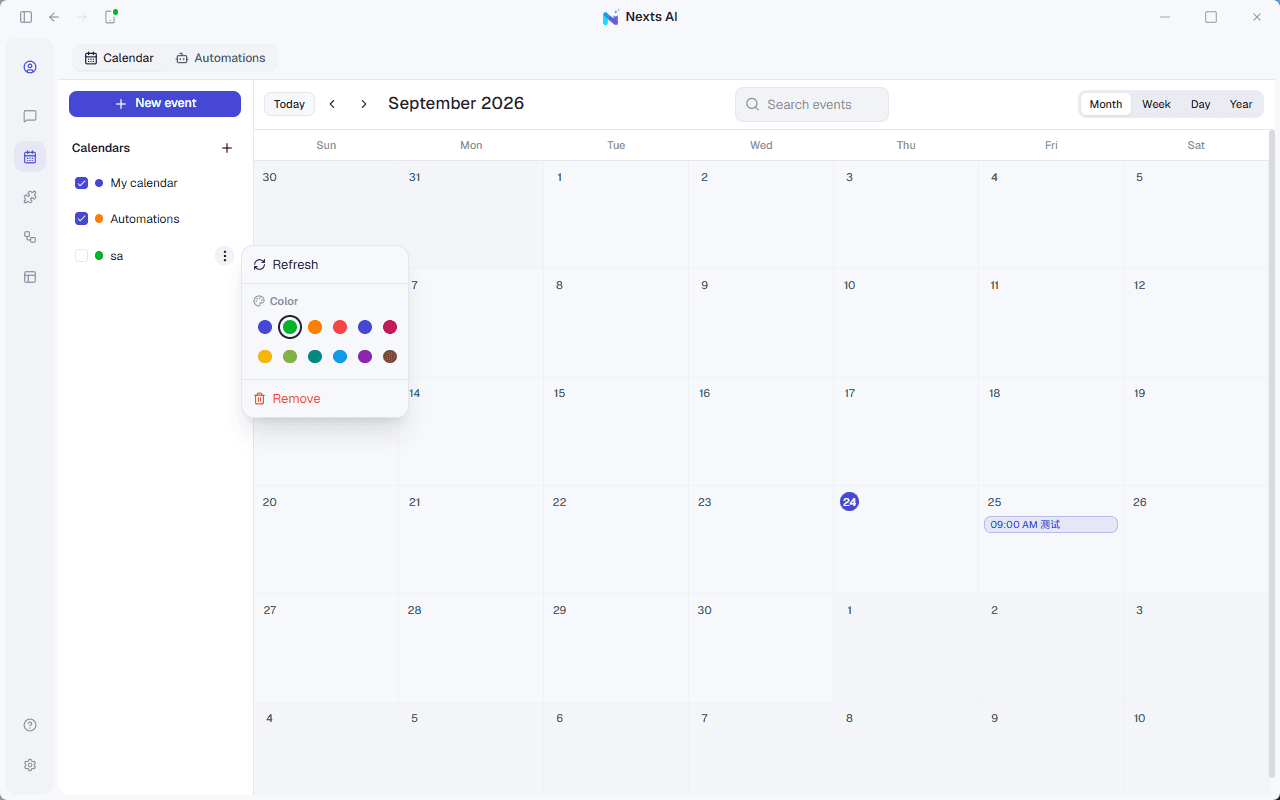
Each subscribed source can have its own color. The color helps distinguish its events in calendar and agenda views. Hiding a source does not change its color or unsubscribe it.
My Calendar and Automations use distinct built-in source styles so regular events remain visually separate from tasks that can execute actions.
Scheduled tasks in Calendar
An enabled scheduled task appears at its next run time. Selecting it opens task management, where you can inspect status, pause or resume the task, and review its run history.
Calendar is only a time projection of scheduled tasks: editing a regular event does not create a task, and deleting an event does not delete an automation. See Tasks and Scheduled Runs for the complete task workflow.
Use Calendar from a conversation
calendar is a built-in Nexts Skill. You do not need to install it from the capability marketplace. When your request is about calendars, events, appointments, or availability, Nexts loads the Skill and enables the local calendar tools it needs.
Try requests such as:
- “What do I have tomorrow afternoon?”
- “Create a project review on Friday at 3 PM for one hour.”
- “Move Friday's project review to 4 PM.”
- “Delete my dentist appointment next Monday.”
- “Find a two-hour free slot next Tuesday morning.”
- “Starting next week, schedule team sync every Thursday at 10 AM for eight occurrences.”
If more than one event matches, Nexts first searches the relevant time range and asks you to identify the correct one. Subscribed iCal events are read-only and cannot be changed or deleted through chat.
When you say “remind me”
“Schedule a meeting” normally creates an event. “Run a summary, check files, or notify me at that time” normally creates a scheduled task. If you need both reserved calendar time and an action that runs later, explicitly ask Nexts to create both an event and a task.
Mobile tips
- Tap a date to view its agenda, then use + to create an event.
- Hide calendar sources to reduce information density on a small screen.
- Use the three-dot source menu to refresh, recolor, or remove a subscription.
- Open the Automations tab to manage tasks; execution still happens on the connected desktop Nexts.
- If desktop and mobile differ, confirm Remote Access is online and refresh Calendar.
Troubleshooting
Why can't I edit a subscribed event?
iCal is a subscription format, so Nexts treats it as read-only. Edit the event in its original calendar service, then refresh the subscription in Nexts.
Why hasn't an external update appeared?
Open the source's three-dot menu and select Refresh. If it still does not update, confirm that the subscription URL is reachable and that the source is not hidden.
Why is a scheduled task missing from the calendar?
Confirm that Automations is visible and that the task is enabled with a next run time. Manual tasks do not have a scheduled time, so they do not appear on a calendar date.
Does changing a source color modify the external calendar?
No. The color is stored only in Nexts and is not written back to the iCal source.
Is calendar content uploaded to the account service?
No. Events, subscription caches, and task projections are local product data. Mobile reads them through an authorized connection to your Nexts device; the account service does not receive event content.